Meta Catalog Ads: A Quick Start Guide
Crowdfunding Analysis · · PledgeRadar Editorial

Catalog Ads (also known as Dynamic Catalog Ads) connect your product feed directly to Meta's advertising system, allowing Meta to automatically select and display relevant products to suitable users. This ad format is ideal for e-commerce businesses with extensive inventories, frequently changing products, or those needing dynamic retargeting capabilities. Many new advertisers and even some experienced clients are unsure how to set these up effectively. This guide provides a clear, step-by-step process.
1) Preparation
You will need a verified Meta Business Account (or Meta Business Suite) linked to a corresponding Facebook Page and/or Instagram Account.
Your website must be trackable (with Meta Pixel installed) to transmit events (such as View Content, Add To Cart, Purchase) for dynamic retargeting and optimization.
2) Creating a Product Catalog
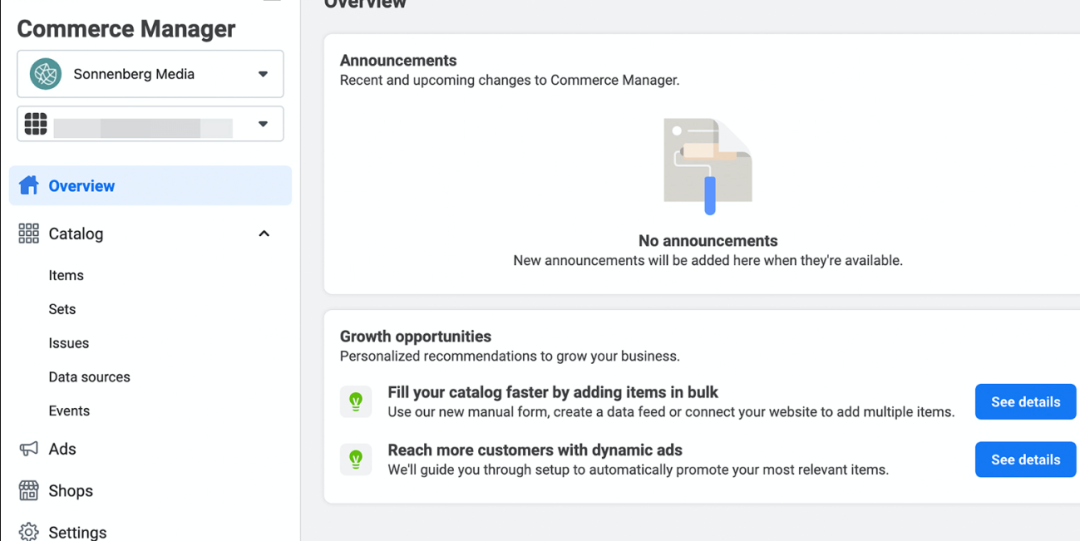
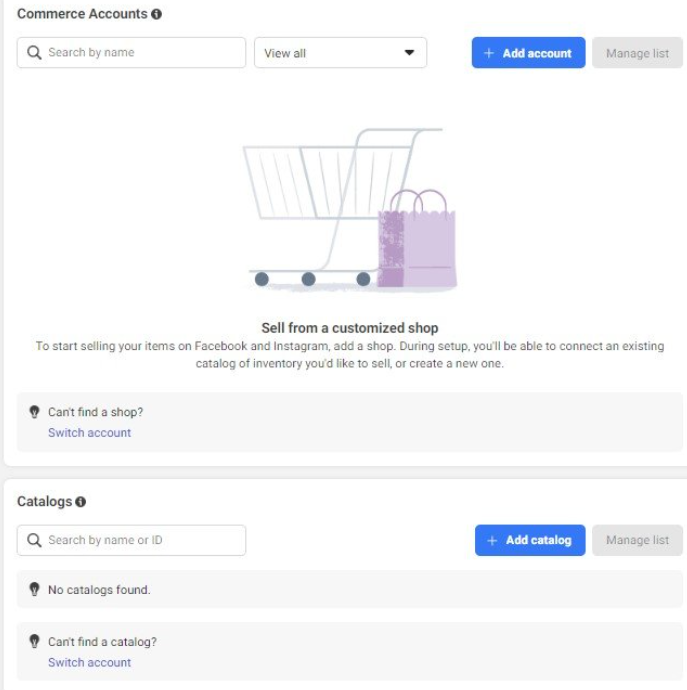
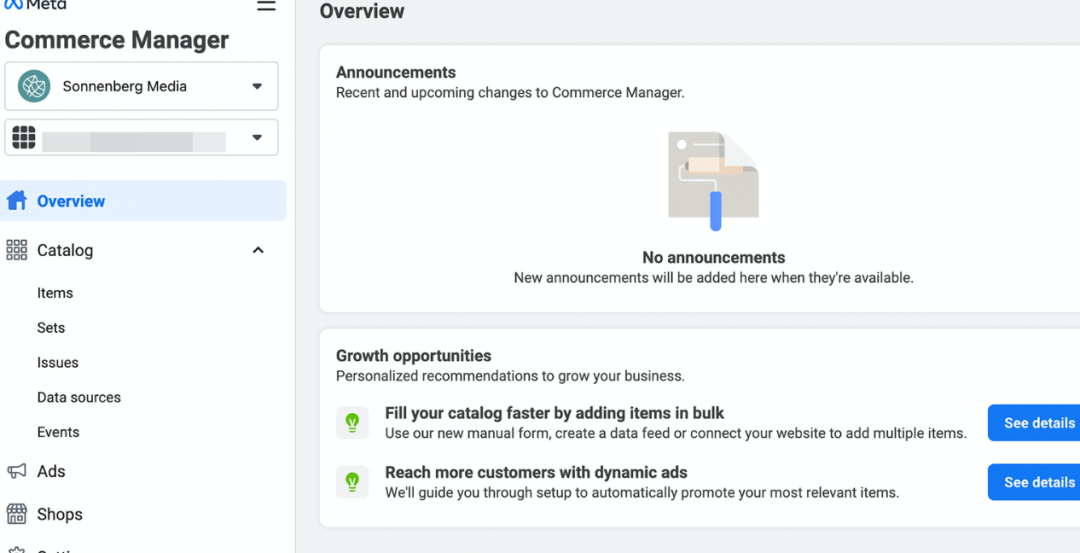
1. Open Commerce Manager (or navigate through Meta Business Suite → Settings → Data sources → Catalogs).
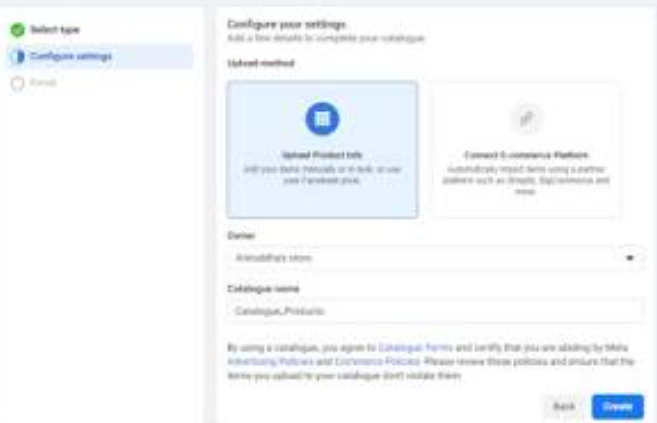
2. Click Add / Create new catalog, then select Online products (this option is suitable for e-commerce and catalog ads).
3) Adding Products to Your Catalog - 4 Methods
• Manual upload: Suitable for a small number of products (found in Commerce Manager → Catalog → Items → Add items → Manual).
• Data feed upload: Use CSV, XML, or a URL to allow Meta to regularly fetch data. Essential fields (such as id, title, description, availability, price, link, image_link, brand) must be complete. This method is ideal for large inventories.
• Automatic capture via Pixel: After mapping website events to product IDs, the Meta Pixel can write triggered product events directly into your catalog.
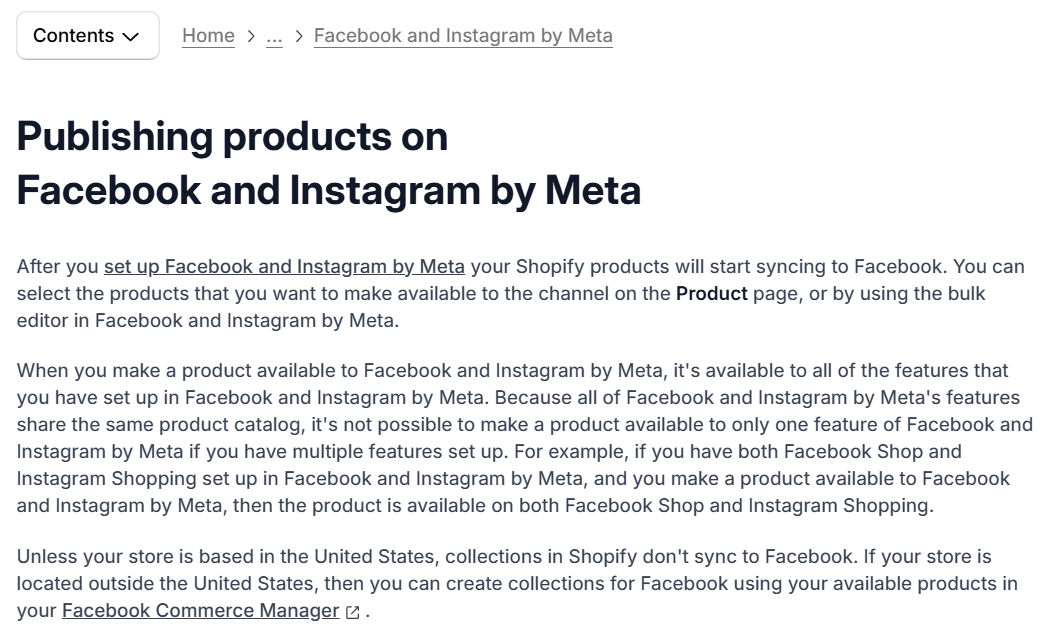
• E-commerce platform integration: Directly connect platforms like Shopify, WooCommerce, or BigCommerce for a more convenient setup and automatic synchronization.
Recommendation: It's advisable to create Product Sets within your catalog first (grouping products by category, promotion, inventory, etc.). This makes selecting target products much easier when creating ads later.
4) Review and Verification (Crucial)
• Ensure every item has a valid link (leading to the product page), a price, and an image_link (pointing to a high-quality image).
• After uploading a data source, always check the error log. Commerce Manager will report which rows have missing fields or incorrect formats.
5) Creating Catalog Ads (Ads Manager)
1. Open Ads Manager → Click + Create. Select Sales as your objective (or your desired conversion objective).
2. At the campaign level, you can enable Advantage+ catalog ads / Dynamic ads (which automatically select and deliver products from your catalog based on user behavior). Alternatively, at the ad set level, you can choose the specific Catalog & Product Set to use.
3. Select your audience (commonly: remarketing to website visitors or users who added items to their cart, or broad audiences combined with Advantage+ automated bidding).
4. In the Ad creative stage, select a Catalog template (which dynamically populates product name, price, and image). Formats include carousel, collection, and others.
Catalog Ads are ideal for e-commerce businesses with extensive inventories, frequently changing products, or those needing dynamic retargeting capabilities.